|
Introduction
In this lab, you
will manipulate several vector and raster data sets using the
Spatial Analyst extension and ArcToolbox Tools to produce four raster layers to
analyze for erosion susceptibility in Yellowstone National Park.
The Problem
Where will problems with surface runoff and erosion be greatest in
Yellowstone National Park after the fires of 1988?
Goal
To solve our problem, we will create a “suitability” map of Yellowstone
National Park showing ranking (from 3 to 16) of potential for runoff and
erosion problems at a resolution of 100 m2.
A. Breakdown of the Problem
1. What are the objectives needed to reach the goal ?
a. Identify key factors that affect runoff and erosion:
- Slope
- Rock type
- Recent (since 1988) loss of vegetation to fires
- Precipitation
b. What is the relative importance of these factors? i.e. How
will each be ranked and weighted?
We will use a scale of 0-4 for each factor, with 4 being the most
important. The table below specifies which values correspond to which rank
for each of the four factors. Note that a rank of zero is only used for
the burn factor, and it is only applied to unburned areas. All other
factors will have a value between 1 and 4.
Rank |
Geology |
Slope |
Burn |
Precip. | >
0 |
- |
- |
No |
- |
1 |
Pre-Eocene and intrusive rocks |
<10o |
- |
<20 inches |
2 |
Lava flows and sedimentary rocks |
10-20o |
- |
20-40 inches |
3 |
Tuffs |
20-30o |
- |
40-60 inches |
4 |
Unconsolidated sediments |
>30o |
Yes |
60-80 inches |
Basically, each raster cell in the study area will receive an ordinal rank for
each of the four factors. Each cell’s ranks will be totaled in order to
determine its suitability. For example, a raster cell whose geology is
tuff (rank = 3), has a slope of 4o(rank = 1), is burned (rank = 4), and
receives 50 inches of precipitation per year (rank = 3) will have a total
“suitability” score of 11 (3 + 1 + 4 + 3 = 11). Suitability scores will
range from 3 to 16. The higher the score, the more susceptible the area
occupied by the raster is to erosion.
2. What data sets are needed?
We know that to apply our ranking scheme to achieve our goals, we need
a GIS layer for rock type, slope, burn cover, and annual precipitation. In
some cases, we may find the needed data ready to use and will only have to
reclassify it to match our ranking scheme. In others, we will need to
convert vector data to grids and/or derive the needed data from the
primary data before reclassifying. Our data needs are summarized below:
|
Primary Data |
Processing |
Needed Data |
|
Digital
Elevation Model |
Calculate
slope, reclassify |
Slope |
|
Fire type map |
Reclassify only |
Burn cover |
|
Geologic map
(vector) |
Convert to
grid, reclassify |
Rock type |
|
Precipitation |
Convert to
grid, reclassify |
Precipitation |
B. Explore the Primary Data Sets
- Copy the Lab_11_data folder to your network storage space.
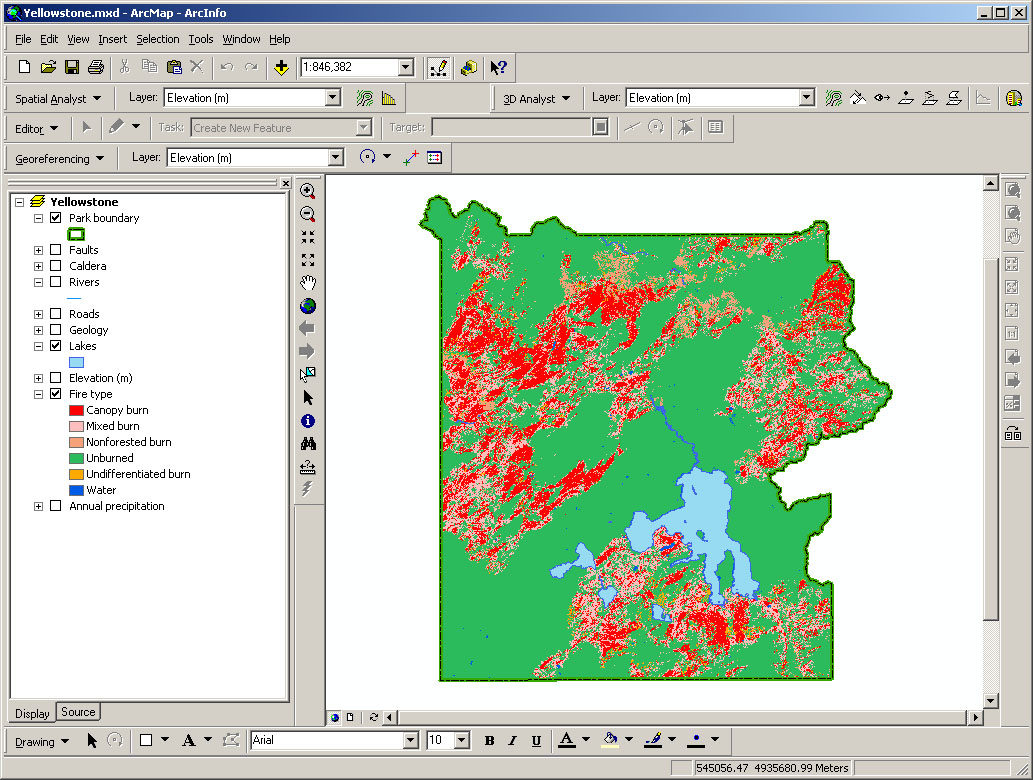
- Open the ArcMap file Yellowstone.mxd. You should see
a map of Yellowstone Park showing the park boundary, areas affected by
fires (since 1988), rivers, and lakes. Several other layers are included,
though they are currently not displayed. Explore the various data sets,
and answer the questions below.
1. Rasters:
The resolution and extent of each raster layer must be known. In order
to perform spatial analyses, all rasters should share a common resolution
and the same spatial extent must be used.
Question 1: What are the resolutions and extents of the raster data
sets in the map file? BE SURE TO INCLUDE THE UNITS! Answer this question
by filling in the chart below:
|
Raster
Layer |
Resolution |
E-W
Extent |
N-S
Extent |
|
|
|
|
|
|
|
|
|
|
Question 2: List the fields that are in each raster layer’s value
attribute table (VAT).
Question 3: What are the ranges for the Value field for each raster?
|
C. Perform Analysis
1. Preprocessing of primary data sets:
a. Projection: Set GCS, PCS, create .prj files; project files as
needed. (THIS HAS ALREADY BEEN DONE FOR YOU.)
b. Set up a working directory for your spatial analyses.
- First, create a folder within the
Lab11_data folder to use as your home
workspace (name it
something like New_Grids).
- We will find it useful to
establish several environment variables,
including a mask for setting the
analysis area when generating new
rasters. This can be done by
selecting the Geoprocessing drop-down
from the main ArcMap menu, then choosing
Environments>Raster Analysis>Mask.
Set the mask to the Park_boundary
polygon. Doing so enables all new
rasters to be restricted to the park
boundary automatically - you will not
need to set the mask for each raster
operation!
- When using the Spatial Analysis tools in ArcToolbox, use the
"Environments" button to set a mask using parkbnd.shp.
c. Table joins, symbolize, create layer (.lyr) files.
- The Geology attribute table has a field called PTYPE-GEN that
contains abbreviations for the rock units but does not have a field that holds rock
unit names for each of the abbreviations. To create such a table,
you need to join the Geology table to a .dbf table called "Geol83.lup"
(a "lookup table") that is in the ofr99174\coverage folder.
- Add the Geol83.lup file to the project
- Right-click on the Geology layer in the Table of Contents and select
"Joins and Relates>Join..."
- Fill in the window: The field in the geology layer and the
Geol83.lup lookup that the join will be based on is the PTYPE-GEN field
- it has the same name in both tables.
- After pressing OK, you may be asked if you want to create an Index
for the table. Answer Yes, though for a table this small this is
not really necessary.
- A Layer file, named "Upper Cenozoic Geologic Units.lyr",
can be used to symbolize the geology on the
basis of the geo83.lup:Group field.
|
Question 4: In the chart below, indicate which attribute of each vector
layer will eventually be used for ranking:
|
Vector
Layer |
Attribute
to be used for ranking |
|
Geology |
|
|
Annual
precipitation |
|
|
d. Aggregate and/or clip vector data.
- Although clipping to the park polygon is optional because we will
eventually convert the vector data to rasters and analyze the rasters
using the analysis mask, go ahead and clip the vector layers to the park
boundary using the tool to do so in ArcToolbox. This will ensure your
results in each subsequent step match those expected from the lab
procedure.
- Symbolize the clipped geology layer using "Upper Cenozoic Geologic
Units.lyr" file, using the GROUP field as the "value field".

Symbolized Geology layer using the "Upper Cenozoic
Geologic Units.lyr" file
- After symbolizing the clipped geology layer, aggregate all the
polygons for each of the 17 values displayed for the clipped geology layer
in the Table of Contents. To do this, use the Dissolve tool in the Data
Management Tools>Generalization Toolbox, specifying
GROUP
as the "Dissolve_Field".
- Join the geol83.lup table to the now clipped and dissolved geology
layer using the "geol83_l_3" as the joining fields (after clipping this
field replaced geol83_l_3).
- Symbolize the
output layer the same way you did for the clipped geology layer. Although
the two layers look basically the same, there are only 18 records in the
dissolved layer compared with over 80 records in the original clipped
layer. Basically you have made one record for each geol83_l_3 value—all
polygons sharing a common value have been combined into one feature and
are represented by a single record in the attribute table.
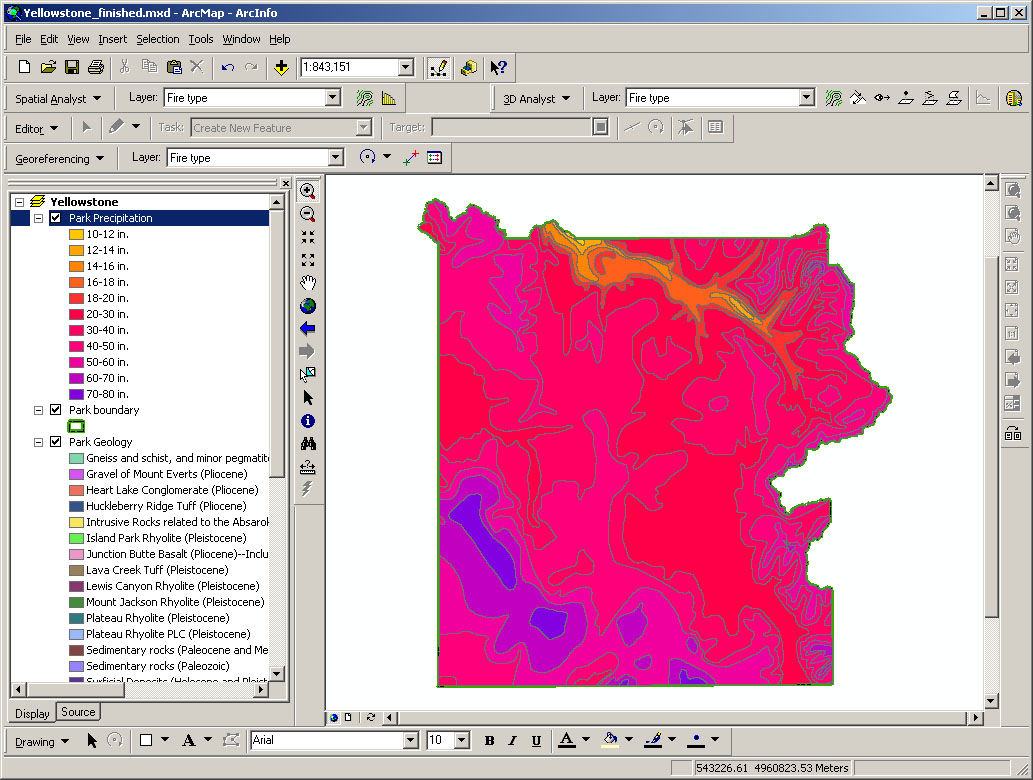
-Clipped precipitation layer-
2. Derive secondary data sets from primary data sets:
a. Create slope grid.
- To create the slope grid, first display only the elevation layer and
the park boundary as shown below. Note how the elevation data extends
beyond the irregular park boundary. We cannot clip raster data to
irregular boundaries as we can vectors, but the analysis mask discussed
earlier will allow us to perform analyses only on the grid cells that
are within the park boundary. The analysis mask will be applied to all
subsequent raster analyses unless we forget to apply it with the
"Environments" button for the tools we will use.
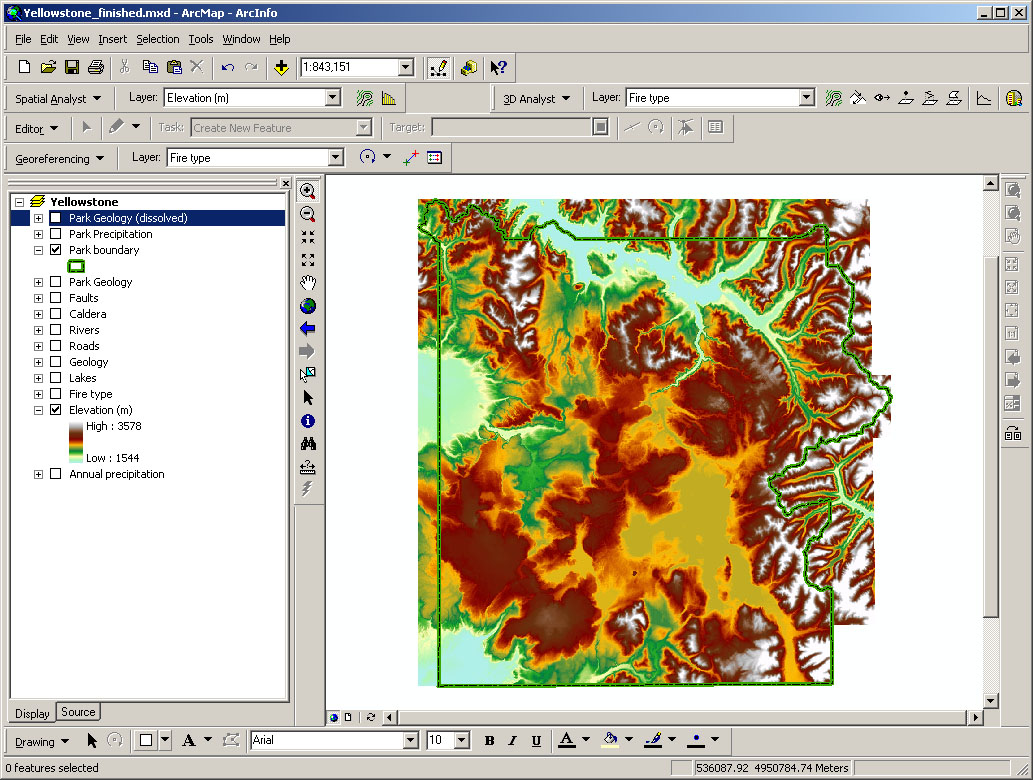
-Elevation and park boundary-
- Go to Spatial Analyst > Surface Analysis > Slope. Select Elevation (m)
as the input surface, and ensure that the Output measurement is Degree,
the Z factor is 1 (i.e. horizontal and vertical units are the same, in
this case meters), and the Output cell
size is 100. Specify an output raster, and click OK.
If the slope tool fails, clear the mask in the Environments setting, use
the Clip tool to clip the elevation data to the Park Boundary, then try
the slope tool on this clipped version.
***Potential Bug: ArcMap may reject your slope calculation. If this
happens, try again and save the output raster to the same folder that
contains the ArcMap file in which the calculation is taking place, or work
from your flash drive. See also the note above about clearing the
Mask in the Environments window.***
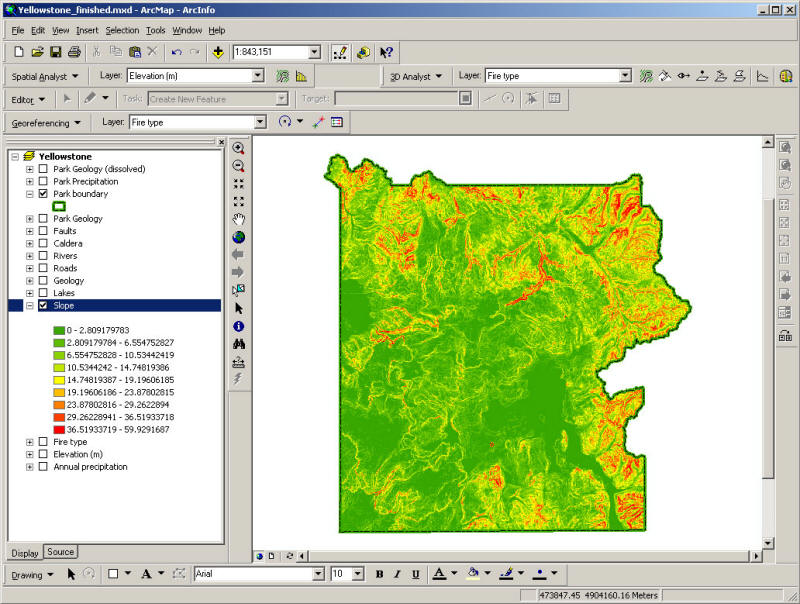
-Slope (derived from elevation) and park boundary-
b. Create geology grid from the dissolved geology vector layer, and convert the clipped precipitation vector layer to a grid.
- We must convert the geology to a raster
layer in order to use it in our spatial analysis. Search ArcToolbox for
the Features to Raster tool. Select the dissolved geology layer as
the input, geol83_l_3 as the field, 100 as the output cell size,
and an output raster name of your choice. Click OK. The conversion may
take a few minutes. You should end up with a raster that looks very
similar to your input vector layer. This can not be symbolized
with a vector layer file; this is now a raster and would need a raster
layer file to symbolize the units. We don't have one; leave it unsymbolized and accept the default colors.
- Repeat the process for the clipped precipitation vector layer, using
CATEGORY as the field, 100 as the output cell size and specifying a new
output file name. Don't forget to set the mask. Symbolize as you did for the vector file, but this time
use the Partial Spectrum Color Scheme.
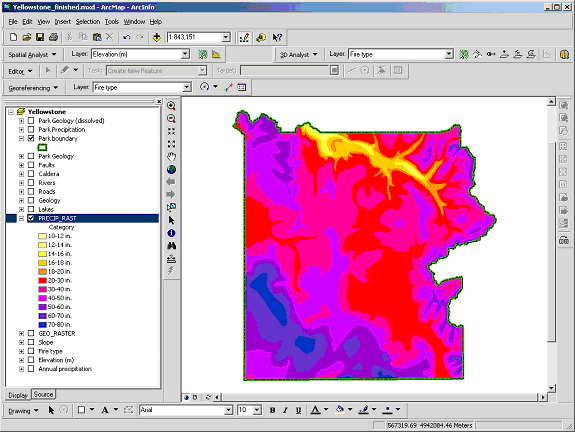
-Precipitation raster with Partial Spectrum Color Scheme-
3. Reclassify data sets:
- To reclassify the raster data sets using our ranking scale, go to
Spatial Analyst > Reclassify, and input the parameters for each of the
four rasters as shown below. Note that for layers with numeric
data (not text), you can edit the old values
as well as the new values in the Reclassify window (e.g., for slope).
***Potential Bug: ArcMap may reject your reclassification. If this
happens, try again and save the output raster to the same folder that
contains the ArcMap file in which the reclassification is taking place, or
work from a flash drive.***
***Potential Bug: Reclassifications with several value changes may be
rejected by ArcMap. If this happens, try scrolling back up through the
list in the reclassify window, click values as you go along. Then pull the
vertical scroll bar all the way down then up to clear any cell lines
in the list. Then click OK. If this doesn’t work, consider adding a new
field for rank to the vector input file, manually inputting the rank
values in the new field, then reconverting the vector file to a grid using
this new field.***

-Slope reclassification parameters-
- For precipitation reclassification, use Category as the Reclass field,
do not edit the old values, and input the new values according to the
chart at the beginning of lab.
- For fire type reclassification, water and unburned get a new value of
zero, whereas all other values (except “no data”) get a new value of 4.
- For the slope reclassification, first redefine the
slope interval in Symbology tab of layer Properties to a
Defined Interval of 10 degrees before reclassifying
using the parameters shown in the figure above.
- For geology reclassification (using the Value
field in the attribute table), use the chart in the MS
Word document "geology reclassificaton.docx" in the Lab
11_data folder as a guide. Note also the following
specific rankings that may not be immediately apparent:
- Unattributed areas are water and
should be reclassified as "NoData"
- Reclassification will not work if you use the "Name"
field, even if this is presented as an option. You
must reclassify numeric values to numeric values. Use
the Value field as the "old value". If you
keep your attribute table open you can see both the
value and the geological unit as you reclassify.
Again, see "geology reclassificaton.docx" for specifics.
4. Weight and combine data sets:
- We will treat each of the four factors equally, so no weighting will be
used. To combine the ranked data sets and produce a composite ranking
layer, go to Spatial Analyst > Raster Calculator. Double-click on one of
the ranked grids listed in the upper left column, click the plus sign,
double-click on a second ranked grid, click the plus sign, double-click on
a third ranked grid, click the plus sign, double-click on the fourth and
final ranked grid, and click Evaluate.
- Symbolize your resulting raster
output using the Red to Green color scheme with the colors flipped (right-click in the symbology
window and choose Flip Colors). Your final raster layer should look like
the screen capture below:
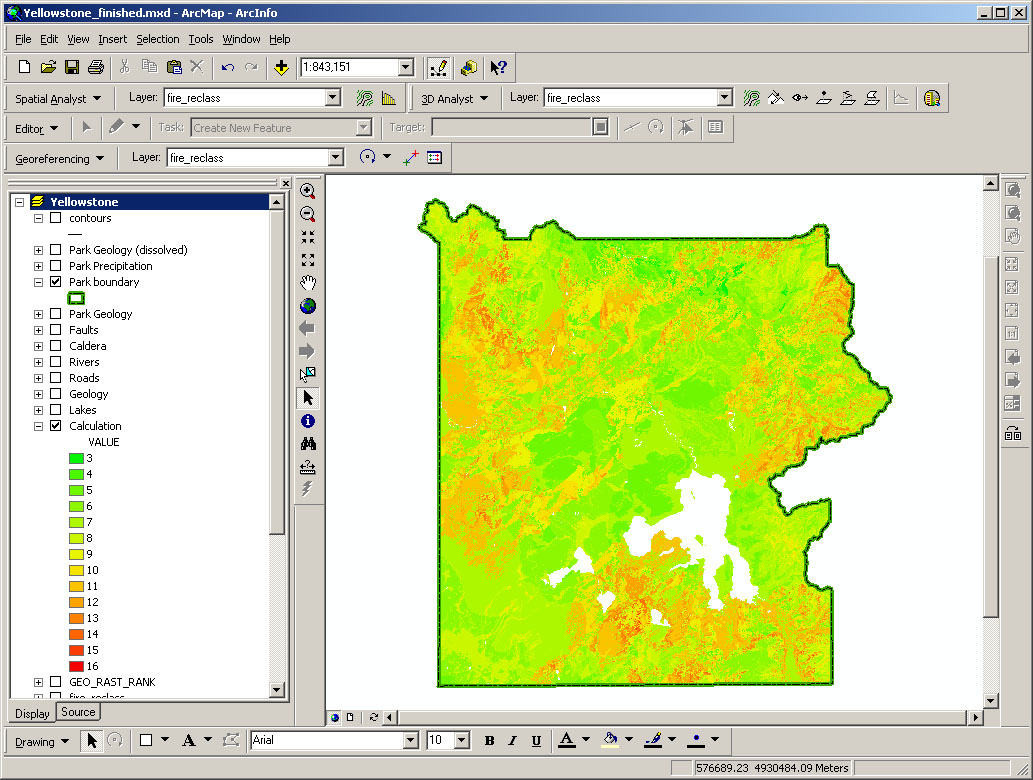
-Final output grid with erosion susceptibility ranked from 3 to 16-
|
Question 5: Do any of the factors analyzed appear to have a greater
influence on erosion susceptibility? If so, which one(s) and what is the
pattern? Are any of the other natural features included in the map file
(faults, caldera, etc.) related to the pattern of erosion susceptibility?
Question 6: Although our method for determining erosion susceptibility
has provided some reasonable constraints on relative values for the park,
it obviously oversimplifies nature and does not include all relevant
factors. BRIEFLY describe two ways to improve the accuracy of the method.
|
|
Map to turn in: Construct a layout of your final raster layer along
with streams, lakes, roads, and the park boundary. The symbology for your
final raster layer should not be altered from the symbology prescribed by
the lab procedure. However, feel free to symbolize the other layers as you
see fit. You should also include a UTM grid and other necessary map
elements.
|
Ancillary Exercises to Help You With Term Projects
(yes, you have to do these exercises)
|
 |