|
10.1 Objectives
This Lab contains 2 parts. In Part A, to be done in lab, you will:
- Create a geodatabase to contain existing data for the field area we
will visit this weekend;
- Create a feature dataset containing empty polygon, line and point
feature classes with domains for field data entry;
- Create a project containing all data needed for field data collection;
- Print layouts and instructions for data collection to take with you to the field;
- Export your project to an ArcPad 8 project;
In Part B, to be done during the class lecture period you will:
- Learn procedures for capturing GPS points, lines and polygons with ArcPad
8 software;
- In pairs, use a Trimble Nomad GPS receiver to capture the
locations of polygons and lines on the East Campus Mall and
circle drive.
10.2 Geodatabase Preparation with ArcGIS 9.3
Most data for this project are available in shapefile format, but we will find
it useful to build a geodatabase so that we can
establish domains for data entry. We will be collecting data with ArcPad
software, which permits the capture of GPS positions for points and
vertices (needed for lines and polygons) and uses forms for entering attributes while in
the field. By using coded value domains in our geodatabase (as in
Lab 4), we can create drop-down menus for our forms, a far easier
way to enter attributes than pecking letters with a stylus on a virtual
keyboard. Recent versions of ArcPad (7.0 and above) also allow the option of
"checking out" Feature Classes from a database for field
editing with ArcPad, then checking them back in
when finished. When it works
properly, this is a very efficient way of editing a field-based GIS,
eliminating the need to update existing files by appending, merging or
otherwise editing them when back in the office to conform to new field data. We will not be
doing so, however, because it does not work with roaming profiles across
the building network. Instead, we will check data out and reimport
it after fieldwork using a a different option.
You have already done many of the steps
below in Lab 4. Refer to it if you've forgotten aspects
of geodatabase Feature Class and Domain creation.
- Download the Lab_7_data folder to your personal storage space.
- Open ArcCatalog and browse to your Lab_7_data folder.
- Create a personal geodatabase called "Reveille_Ranch_Park" within
your Lab_7_data folder.
- Right-click on your new geodatabase and import all of the Feature Classes
(not the rasters) in the
Lab_7_data folder (and subfolders) into the geodatabase. The spatial reference for all of these feature
classes is NAD83, UTM zone 14N, and they will import as such.
- Geodatabases can not hold layer files (these files contain the symbology
for the feature classes you just imported) yet we would like to use the
layer files to symbolize the new geodatabase feature classes. To do so
we must reset the source for the layer files.
- In ArcCatalog, right-click on a layer file icon, select "Properties...", click the
Source tab then the "Set Data Source..." button and reset the source by
browsing to the appropriate Feature Class in your geodatabase. Do this
for all Feature Class layer files (but not raster layer files).
- What about the raster files? The Lab_7_data folder contains a
DRG, DOQ and hillshade
raster with associated layer files; should we import these into the geodatabase? In
this case the disadvantages of doing so outweigh any advantage. In particular,
the color DOQ is a large MrSID file that would get much larger when uncompressed
and stored in IMG format, which is the format required by the geodatabase. There
is no real advantage to doing this, other than having everything in a single container,
and we are left with a file that is an order of magnitude larger. We could instead create a geodatabase raster index (see
Help files on this topic), but for the few rasters we will work with this also provides no real advantage.
We will keep the rasters separate from the geodatabase for these reasons.
- Time to create the empty Feature Classes that will contain the GPS-derived
points lines and areas...
- Before doing so, it is good practice to create a Feature Dataset
that will contain the Feature Classes. To do so, right-click on the
Reveille_Ranch geodatabase
icon, select "New...", then create a new Feature Dataset called "Geology".
SET THE SPATIAL REFERENCE OF THE FEATURE DATASET TO NAD83 UTM zone 14N,
SET THE "Z COORDINATE SYSTEM" TO <None>
AND ACCEPT THE DEFAULT XY TOLERANCES. (Note for outside users: the
procedure for doing this in ArcGIS 9.1 is somewhat different. See
an example here).
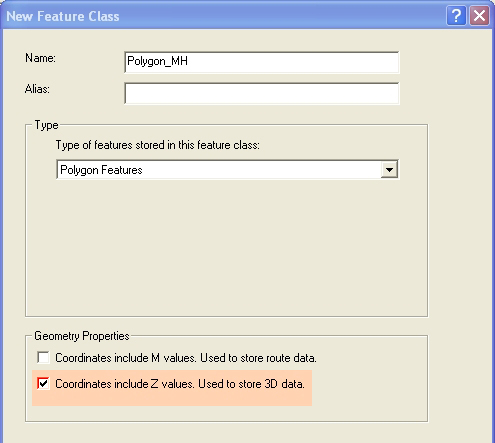
- Now we can create the Feature Classes - right-click on the Geology Feature
Dataset icon, select "New...", then create new Polygon, Line and Point
Feature Classes (named Polygon_XX, Line_XX and Point_XX, where XX is your
first and last initial). Do this step 3 times, one for each
Feature Class, being sure to change the Geometry type [polygon, line,
point] to match the Feature Class and checking the
Geometry Properties box on to allow "Coordinates include Z Values"
as shown below.
- The polygon feature class will be used to store the GPS-derived
outline of rock outcrops and any other features that are polygons. We need an attribute field that records
the feature being mapped (e.g. "pink gneiss", "amphibole
gneiss", pegmatite, granite, Hickory, Cap Mt. or “other”) that can be
entered as we collect the data. So... add two Text fields to the polygon feature class, one called
"FEATURE" and another
called "COMMENT". The length of the FEATURE field should be 15 and the COMMENT field 30. Leave all other
Field Properties blank for now. Please use these precise field
names, including capitalization, for this and all other feature classes.
Merging and appending files from different GPS receivers is much easier
if everyone uses exactly the same field names.
- Create a Domain (by right-clicking on the Reveille_Ranch geodatabase icon, then Properties...) called
PLY_TYPE, (Field Type is Text) that is a coded-value domain containing the coded values of
"granite", "pegmatite", "pink_gneiss", "black_gneiss"
"hickory, "cap_mt" and "other" (see Lab
4) and then attach this
domain to the polygon attribute field FEATURE
(again see Lab
4). Please use these domain names exactly as they are
spelled above.
- The line Feature Class will be used to store rock unit contacts or
outcrop boundaries that can't immediately be seen to close on themselves
(i.e. can’t be mapped as polygons). The attributes that will be recorded and the new fields
to create are:
1. 9-character text field, called "FEATURE", that will contain coded values from a text Domain called
"LN_TYPE" of "contact",
"outcrop" and "other".
2. 7-character text field, called "SYMBOL", that will contain coded values from a text Domain called
"Symbol" of "solid",
"dashed" and "dotted".
3. 30 character text field, called "COMMENT", without an attached domain.
- Create these new Fields and their Domains with the above coded
values and attach the Domains to the Fields, as in steps c and f.
- The point Feature Class will be used to record the location of
features too small to recorded as polygons and for strike/trend and dip/plunge
measurements. We will need fields for:
1. 11-character text field, called "PT_TYPE", that will contain coded
values from a text Domain called "PT_TYPE" of "joint", "foliation",
"bedding", "dike", "hinge_line" and "other".
2. 3-character short integer field (Precision equals 3), called "STRIKE", that will contain coded values from a short integer Domain called
"strike"
of every third integers between 0 and 357 (i.e. Codes of 0, 3, 6, 9, 12
etc. with Descriptions of 000, 003, 006, 009, 012,
etc. to 357; yes, all 120 values).
3. 2-character short integer field (Precision equals 2), called "DIP", that will contain
coded values from a short integer Domain called “dip” of every second
integer between 2 and 90 (i.e. Codes of 2, 4, 6, etc., with Descriptions
of 02, 04, 06 etc.; 44 values in all).
4. 30-character text field, called "COMMENT", without an attached domain.
- Create these new Fields and their Domains with the above coded
values and attach the Domains to the Fields, as in steps c and d.
Congratulations, you have now completed the database you will need for
this project!
10.3 Making Field Maps
- Open ArcMap with an empty map document and load all of the LAYER FILES (not the Feature Classes),
including the layer files for the DOQ and Hillshade. If this doesn't
work, you skipped Step 5 above.
- Load the empty Polygon_XX, Line_XX and Point_XX Feature Classes you just
created and move them to the top of the Table of Contents if not already
there.
- Order the remaining layers so that the Hillshade is at the bottom, the DOQ
is second from the bottom, and all remaining layers above these.
- Zoom to the Clipping Box, reset the reference scale, and
SAVE THE MAP document to your Lab_7 folder.
Note that the symbology stored in the layer files for each of the
feature classes is exceeding simple and somewhat gaudy with bright
colors and single lines. This is intentional - even though they
look unsophisticated here they will be highly visible on the hand-held
field units.
Switch to Layout mode and make a page size map with a 50 meter UTM grid, scale bar, north arrow, name, etc. Print two maps, one with the hillshade layer turned on and another with the hillshade off
but the DOQ on. The scale should be ~ 1:6,000 to be useful; you will have
to tile the map onto a few pieces of paper to cover the area of interest
(Julio will tell you how much of the area to print), which is South of
the lake and east of the tailings pile.
Bring these maps with you on the field trip.
10.4 Making an ArcPad project for the Trimble Nomad
GPS data collection using the Trimble Nomad units is best
done with ArcPad software. ArcPad is a streamlined version of ArcGIS
that is equipped with very easy to use GPS capture tools. ArcPad 8.x is
installed on the classroom computers and our field data collection units. Version 8 is a major revision
from earlier releases (but not the most current - ArcPad 10 was released
this summer). Before getting a little ArcPad
practice, we first need to convert the ArcGIS map document file into an
"ArcPad Project". An automated tool exists to do so, which converts
most rasters to MrSid images, the geodatabase feature classes to shapefiles,
and makes data entry forms from the domains for each Feature Class.
We can "check out" the empty Feature Classes for editing then, upon
return, import them for further editing.
An important note about ArcPad versions:
- ArcPad 8 (and 7) represents a significant departure from earlier
versions (i.e. 6.x and below). "ArcPad Projects" created for ArcPad 8
and
7.x will not run on 6.x software, and vice-versa.
The ArcMap toolbar for creating ArcPad projects in versions of
ArcGIS 9.1 and higher contains separate tools for creating ArcPad 8.x and 6.x (or lower) projects. It is thus important to know
which version of ArcPad is installed on your field data collection
units. Our Trimble Nomads and Xplore tablet PCs are
currently running ArcPad 8.x, as are
the computers in the lab.
A. Preparing the Map Document for ArcPad (version 8.x).
- Open your map document in ArcGIS.
- Switch to Data View mode (if you're in Layout mode) and zoom to the
Clipping Box layer. This is an important step!
- Make sure your "Points_XX", "Lines_XX" and "Polygons_XX"
Feature Classes
are present in the Table of Contents of the map. These are empty, but have coded-value domains already
built that will allow use of ArcPad data entry forms. These are
the files you will populate with GPS measurements.
- If not already on, turn on the ArcPad toolbar (Tools>customize...)
NOT the ArcPad Data Manager toolbar. The correct
toolbar is shown below

The ArcPad Toolbar
- On the ArcPad toolbar, click the "Get Data for ArcPad" button,
the button on the left.
- In the "Choose layers you want to get from map" window, click the
"Select All" button or put a check mark next to every feature class, as
shown below.
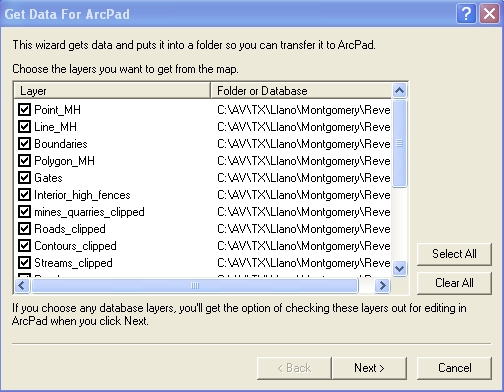
- You now get to choose which layers you want
to check out from your Reveille_Ranch Geodatabase. The only ones you will edit in the field are the
Point_XX, Polygon_XX and Line_XX feature classes. Place a
check next to these and leave the others blank, as shown below.

- DO NOT CLICK NEXT YET. If you will be using a Tablet computer set the
"Size of editing form..." drop-down menu to 130x130.
This is the size that fits best on the screens of the Trimble Nomads.
- The final window lets you set the spatial extent (current
display extent or full extent of the layers), lets you select whether to
limit the fields to those that are visible in the attribute tables and
the features to those specified in the layer's definition query, lets
you specify a name for the folder that will store the data, and lets you
create an ArcPad map file (the equivalent of an .mxd file) for the data,
as shown in the "Get Data For ArcPad" screen capture below.

- Enter a name for the folder, e.g. "ArcPad_RR_XX" (where XX are
your initials).
- Making sure first that your ArcGIS display shows the entire area of
interest (i.e. you are zoomed to the Clipping Box), make the selections shown in the figure
above, setting the
"Where do you want the folder to be stored?" to an appropriate location
on your network storage space.
- Click Finish and wait for the data to be created.
- With help from Julio, transfer your new "ArcPad_RR_XX" folder
to your Trimble Nomad (these will be shared, but each partner can load a
project).
- Print a copy of the PDF file "ArcPad Quick Reference",
in color.
You will find this exceptionally useful for Part B of this lab, and for
the field trip.
Part B: Practice with ArcPad
10B.1 Using ArcPad - some practice with the basics
Editing in ArcPad is, in most ways, much simpler than Editing in ArcGIS.
The basic concept is the same in both - data are entered into a file that
is open for editing. Below are a few of the basics. A complete description of the
software can be found in the ArcPad 8 folder in the class folder or
here.
- On a classroom computer, open ArcPad 8 from the Start Button>All Programs menu in Windows.
- Click the folder button at the top of the ArcPad window and select
"Open Map", then browse to your ArcPad map file, the one with
the ".apm" extension, in your "ArcPad_RR_XX" folder.
- Three toolbars are immediately available
(called Main Tools, Browse Tools and Drawing Tools), though only one at
time (this saves screen real estate on small screens), by choosing one
of the three icons shown below.
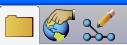
- Click Main Tools icon (on the left in the figure above) and then
select the Layers icon
 to
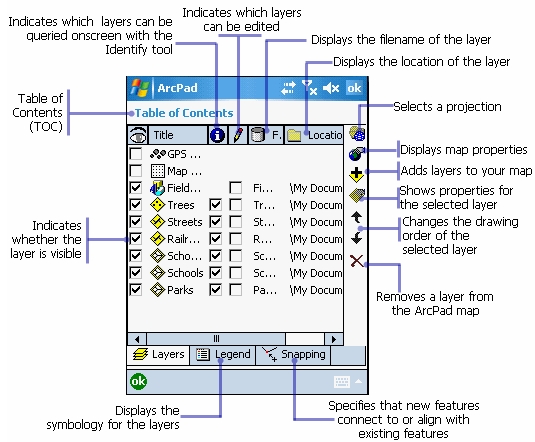
open up a Table of Contents, like that shown below. to
open up a Table of Contents, like that shown below.
-
The check boxes on the left in the "eye" column turn
layers on and off for viewing. The check boxes in the "pencil"
column turn layers on and off for editing. This is similar
to setting the "Target" of the editing toolbar in ArcGIS, except that
in ArcPad more than one layer can be open for editing at a time. In
the Table of Contents above, none of the layers are open for
editing. Finally, the check boxes below the Info icon (i) make layers available for query.
Layer Properties can be accessed by an icon on the right, as can other
options denoted by icons that should be familiar from ArcMap.
-
Turn on the "Point_XX" layer for editing and close the
Table of Contents.
-
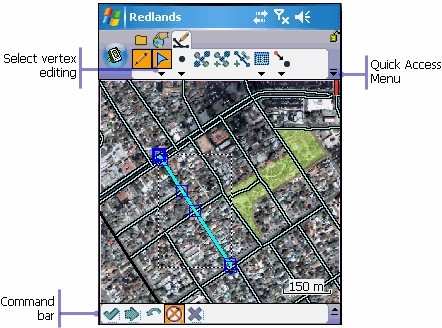
Turn on the Edit toolbar by selecting it from top row of
icons, as shown below.
-
The function of the edit tools are shown in the figure
below.
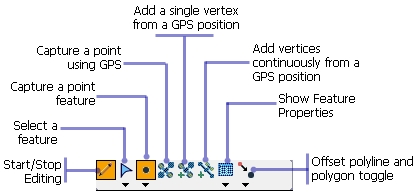
To add a point to the map, Click the pencil tool, select
the layer you want to edit, click the "Capture a point
feature" button, (Capture of polyline or polygon features, if open
for editing in the TOC, can be selecting from the drop-down menu below
the "capture a point" feature icon). Then click a location on the map. A data entry form should then open,
allowing you to select the feature name from a drop down list.
To do outdoors: To add a GPS location as a point, click instead the
"Capture a point using GPS" button. (When the GPS is active this
button is not grayed-out.)
-
To add a line, click the Pencil icon, select the polyline
feature class you want to edit, click the drop-down arrow below
to the "Capture a point feature" button, and select "Polyline".
Click on the map where you wish to place a polyline vertex, click and drag
on the next spot where you want a vertex, and continue this process until
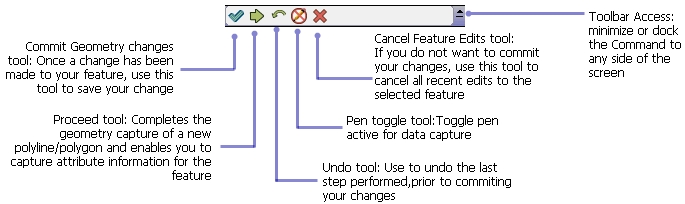
finished. The line is not completed until you click the "Proceed
or complete feature" button at the bottom of the ArcPad window
(shown below). This is the most common mistake for novice
users - you must finish every feature with a click of the "Proceed"
button or it will be lost!
-
To do outdoors: To add GPS vertices to a polyline, as above, click the "Capture a polyline"
button (beneath the capture a point button), click the "Add a single
vertex from a GPS position" button and continue clicking this button
every time you want to add a vertex to the line. To finish the
line, click the "Proceed or complete feature" button, the
green arrow icon. The line is not completed until you click the
"Proceed or complete feature" icon.
The GPS must be activated before
the GPS buttons are available.
-
A similar procedure is used to capture polygon vertices
with and without GPS.
-
You can delete features by selecting them with the
Arrow button (shown above) and then
clicking the "Edit vertices" button.
-
Practice adding and deleting lines, points and polygons to the map.
Name the features test1, test2, etc. so that, if needed, you will be able to recognize and
delete them later.
-
Browse the ArcPad manual in the digital books folder,
particularly the sections on editing. Download and print the
ArcPad Quick Reference
page.
-
Before loading your RR_XX ArcPad folders to the field GPS
units, clear each of your test features, or don't save your project after
editing.
10B.2
-
Before our field trip, you need practice using ArcPad with a GPS.
An ArcPad project for the East Mall, identical to the ArcGIS project
you constructed in Lab 6, is loaded on all instruments. Take
your instrument outside, open the East Mall project, and practice
capturing lines, points and polygons using the ArcPad GPS
tools described above.
-
Specifically, capture features on the east mall or
near the circle drive (note that construction will not allow most of
those shown below).
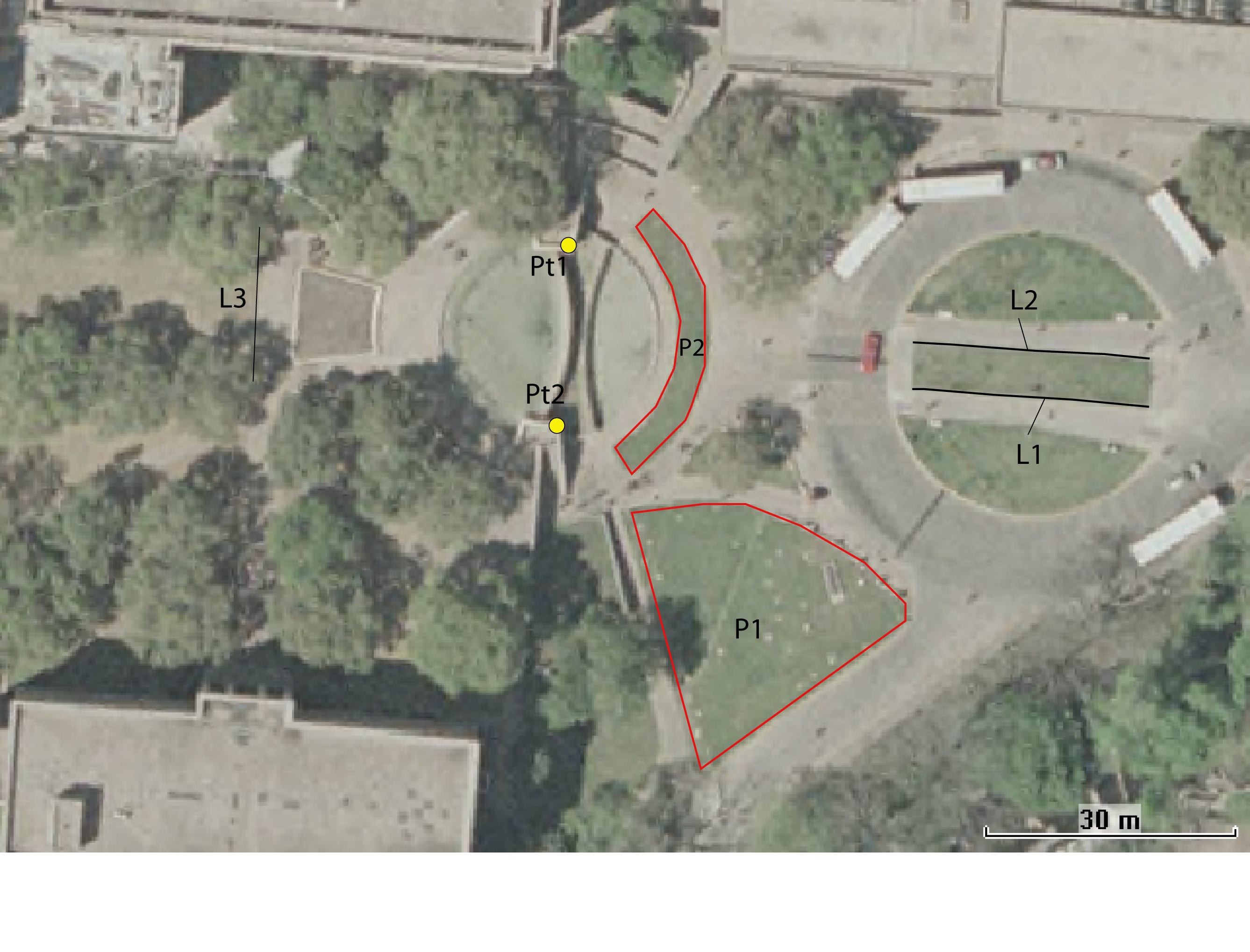
- Pt1, Pt2: Points at the corner of the steps leading down from the
East Mall.
- L1, L2, L3: Polylines with at least 3 GPS vertices at the edges of
sidewalks.
- P1, P2: Polygons outlining grass areas - capture the vertices with
GPS.
You're done.
|
 |